
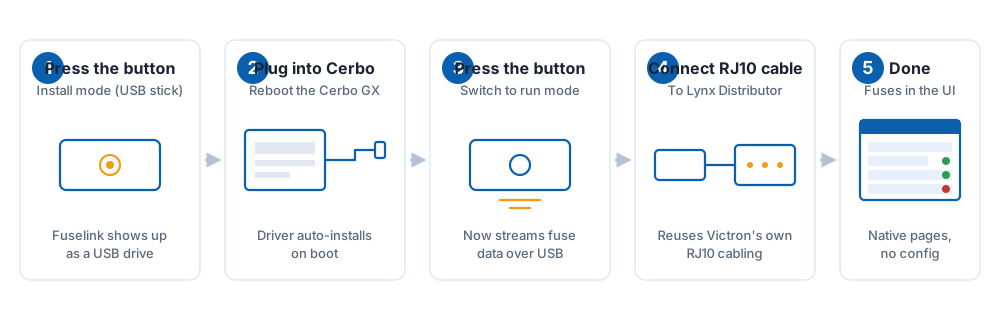
Five steps. About two minutes. No terminal, no Node-RED, no file editing.
You'll need:
Each Lynx Distributor has a small 2-way DIP switch on the back. Set each distributor to a different address from 0 to 3 before you start. One Fuselink can read up to four distributors on the same RJ10 chain.
Press and hold the button on Fuselink for 5 seconds, until the LED turns blue. Fuselink is now pretending to be a USB stick.
Plug Fuselink into any free USB port on the Cerbo GX with the supplied cable. Cycle power on the Cerbo. On boot, Venus OS finds the driver and installs it automatically.
Once the Cerbo is back up, hold the button for 5 seconds again, until the LED turns green. Fuselink is now in run mode and streaming fuse data.
Plug the Victron RJ10 cable between the Fuselink and the first Lynx Distributor. If you have more distributors, daisy-chain them with extra RJ10 cables.
The Lynx Distributor fuse pages appear in the standard Victron menu. Tap a fuse to give it a name (e.g. "Solar 1", "Water pump").
Check that the LED on Fuselink is green (run mode), check the RJ10 cable is fully clicked in at both ends, and make sure each distributor's DIP switch has a unique address. The full troubleshooting guide is in the manual.
Fuselink is a small device in a USB-shaped enclosure. It has two USB modes that you switch between by holding the button for 5 seconds:
| Mode | What the Cerbo sees | What Fuselink is doing |
|---|---|---|
| Install | A USB stick | Carrying its driver, which the Cerbo installs on next boot using the standard USB-stick update flow. |
| Run | A USB device | Reading fuse states from the RJ10 chain and feeding them to the Cerbo for display. |
| Wi-Fi recovery | Nothing | Hosting a captive portal so you can update firmware over the air from fuselink.uk. |
The Cerbo's existing Lynx Distributor fuse pages display the data — the same pages that already work with a Lynx Smart BMS. From your point of view, fuses "just appear" in the UI exactly where you'd expect them.
Importantly, Fuselink is read-only. It never sends control commands and is designed not to participate in charge-control logic, so it cannot affect your chargers or your battery.
